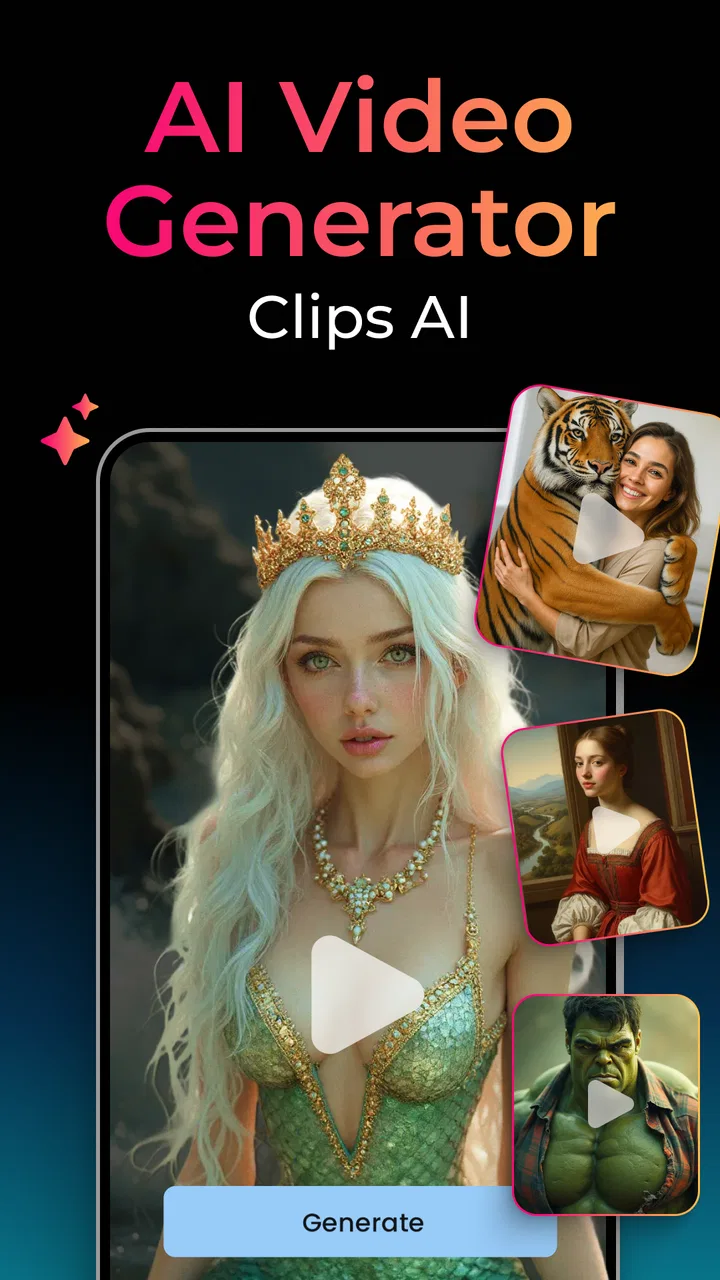
AI Video Generator - Clips AI
- 4.4
- Rating
- 1.00M
- Installs
- Free
- Price

 Analysis by App-foxy
I tried AI Video Generator - Clips AI as a quick way to turn ordinary words and pictures into short visual content, and I found its strongest appeal in shared, everyday use. It belongs to the Art & Design category, but it feels less like a traditional drawing tool and more like a shortcut for people who want a video without learning a full editing timeline. I can imagine using it at home to make a birthday greeting, a simple school presentation, a family announcement, or a visual post from a few photos.
The important distinction is that this is not the same kind of experience as opening a conventional editor and manually arranging every cut. Its purpose is to help generate video material from text and images. That makes it approachable for someone who has an idea but does not know how to build a project from scratch. At the same time, anyone expecting detailed control over every frame may find the process less satisfying than using a dedicated editor.
How it works when several people share the same device
On a household tablet or phone, the app can be useful because the starting point is easy to understand: bring in an idea as text or begin with an image, then work toward a video. I like this kind of workflow for collaborative moments. One person can choose the subject, another can select the picture, and a third can suggest the wording. The app becomes a small creative activity rather than something only one technically confident person can operate.
You May Also Like

 Blood Strike: 2.5 Anniversary
Blood Strike’s Loadouts Turn Every Drop Into a Tactical Gamble
A close look at Blood Strike’s custom loadouts: how fast access to signature weapons reshapes its battle royale rhythm, rewards preparation, and narrows the gap between fights.

 Pandora - Music & Podcasts
Pandora’s Music Is Easy to Start, but Harder to Recover
Pandora’s strength is its low-effort path from a seed to a station. Its weak spot is how much confidence it asks you to place in connection, setup, and quiet recovery.

 8 Ball Pool
 Is Built on Rivalries, Rematches, and Routine
A close look at the rivalries, rematches, shared routines, and unanswered safety questions that turn a quick pool match into a persistent mobile community.

 Samsung Music
’s Quiet Strength Is Playing What You Already Own
Its reach comes less from spectacle than from dependable access to a personal library. That simplicity is both the app’s strongest retention engine and its ceiling.

 AccuWeather: Weather Radar
AccuWeather Review: A Quick, Clear Forecast for Everyday Decisions
For everyday plans, the best forecast is the one you can understand quickly. AccuWeather makes rain timing, radar, and local conditions easy to act on, with a few trade-offs.

 Hill Climb Racing
Why Hill Climb Racing Still Turns Crashes Into One More Run
A tiny car, a bumpy hill and one more upgrade: Hill Climb Racing keeps resurfacing because its simple chaos makes every near-miss feel personal.
More From Our News Desk



A realistic example would be preparing a short family message for a relative. I would first decide what the video needs to communicate, rather than typing a long paragraph and hoping the result says everything. A short description with a clear mood is usually a better starting habit for generative tools. Then I would select an image that already has a strong subject and review the result before sharing it. This keeps the process focused and makes it easier for other household members to give useful feedback.
For a school project, I would use the same approach in stages. I would separate the project into small visual ideas instead of asking for one large finished presentation. That gives me more control over what belongs in each scene and makes mistakes easier to spot. It also avoids a common problem with fast creative apps: accepting the first result simply because it appeared quickly.
The most useful household habit is to treat the first generated result as a draft, not as the finished video. I found that this mindset matters more than trying to write a perfect prompt immediately. A draft shows whether the visual direction is working, while a second attempt can be made with a shorter description, a clearer subject, or a more specific mood.
Shared use also brings a practical boundary: the app is installed on a device, not necessarily organized around separate household identities. I would not assume that every person using the phone has an independent workspace or that one person’s projects are automatically separated from another’s. Before handing the device to someone else, I would save or export anything important and avoid leaving private images open in the working area.
What to prepare before creating a video
The quality of the starting material makes a noticeable difference to the experience. For image-based projects, I would choose a picture with a clear main subject, reasonable lighting, and enough space around the important details. A crowded photo gives the generator more to interpret and can make the result feel less predictable. This is especially relevant when children or older relatives are helping, because a visually simple image is easier to understand and evaluate.
Text prompts benefit from the same discipline. Instead of writing a complete story, I would describe the subject, the intended feeling, and the visual action in plain language. For example, a short request about a family picnic becoming a cheerful moving scene is more practical than a long explanation containing several unrelated events. If the result is too vague, I would change one element at a time rather than rewriting everything.
One non-obvious advantage of this method is that it helps identify which part of an idea is actually important. If a project does not work, I can ask whether the problem came from the image, the wording, or the intended style. That makes improvement more systematic. It is a better workflow than repeatedly pressing generate without knowing what changed.
I would also keep the original photographs in a separate, familiar location on the device. Generative work is experimental, and a household member may accidentally replace, move, or remove something while trying different options. Keeping originals separate is a simple precaution that does not depend on any special feature inside the app.
Keeping projects understandable on a shared phone
Coordination matters more than it first appears. If several people use one device, I would agree on a simple naming pattern for saved projects, such as including the subject and the person responsible for reviewing it. This is not an app feature; it is a household routine, but it prevents confusion when several similar videos are created close together.
I would also decide who has the final say before a video is sent elsewhere. A child might enjoy generating an imaginative clip, while an adult may need to check whether the image is appropriate for a family group or school setting. That review should happen before sharing, especially when the original image includes other people.
Another useful arrangement is to separate creative time from publishing time. First, let everyone experiment. Later, choose the version worth keeping and inspect it carefully. This reduces pressure on the person operating the app and avoids treating an automatically generated result as trustworthy just because it looks polished at first glance.
When a project is meant for several relatives, I would ask whether the video makes sense without an explanation from the person who created it. If the answer is no, the text or image choice may need simplifying. A successful shared-device project should be understandable to the viewer, not only to the person who knows the original idea.
There is also a trade-off between speed and consistency. A fast generated clip can be perfect for a casual message, but a set of videos made for a presentation may not look uniform. If a household project needs matching scenes, repeated characters, or carefully controlled branding, I would choose a conventional editor or a more specialized production tool instead. This app is more attractive when the goal is a quick visual result than when strict continuity is essential.
Age, trust, and reviewing the result
The app is marked for Everyone, which makes its general audience broad. I still would not interpret that as a reason to let a young child use it without guidance. The age label describes suitability in a general sense; it does not replace an adult’s judgment about which photos, prompts, or finished videos are appropriate for a particular child.
For younger users, I would keep the activity centered on imagination and editing decisions. An adult can help choose source images, explain why personal pictures should be handled carefully, and review the final result before it is shared. This is especially important on a shared device, where the person creating a clip may not be the person who later sends it to others.
Older children and teenagers may appreciate the freedom to test ideas quickly, but they also need to understand that generated visuals can be misleading or simply inaccurate. A moving image can look convincing while still failing to represent the original photo faithfully. I would encourage them to compare the output with the source and to label creative material clearly when the context requires it.
For family photos, my rule would be simple: use images that everyone involved is comfortable using, and do not assume that a private picture is suitable for public posting just because the app can transform it. This is a trust issue rather than a technical one. The most impressive result is not worth creating tension with the person shown in the image.
Adults should also remember that a free installation does not mean every possible use is free. The app is available at no upfront cost, while in-app purchases range from $0.99 to $699.99 per item. On a shared device, I would review purchasing arrangements before allowing other people to experiment. A child tapping through a creative workflow may not understand that a later step can involve a charge.
That price range is the clearest reason I would not hand over the phone without conversation. I would explain who is allowed to approve purchases and who is only allowed to create drafts. Even without assuming anything about the app’s account system, this boundary is sensible for any household where several people use one device.
Where it fits beside ordinary video editors
Compared with a standard mobile video editor, AI Video Generator - Clips AI reduces the amount of manual assembly at the beginning. A conventional editor gives me direct control over clips, timing, transitions, and the exact order of material. That is better when I already have footage and want to shape it precisely. This app is more appealing when I have a concept, a photograph, or a short description but not a finished sequence.
Compared with a presentation app, it can feel more visual and spontaneous. Presentation tools are usually better for structured information, readable text, and predictable page-by-page organization. I would use this app for atmosphere and motion, not as my first choice for a serious lesson where every word must remain perfectly legible.
Compared with a simple slideshow maker, its image-to-video approach offers a more creative starting point. A slideshow mainly arranges what I provide, while a generative workflow can interpret the source and create something more expressive. The trade-off is predictability: a manually assembled slideshow is easier to audit, while a generated result may need closer inspection.
That difference also affects accessibility. Someone who is uncomfortable with a timeline may find this app less intimidating. On the other hand, an experienced editor may feel constrained if the result cannot be adjusted with the same precision as a traditional project. I would recommend it to beginners, casual creators, and people testing ideas, but not as a replacement for a full editing suite in professional work.
Performance expectations and practical friction
The appeal of instant creation can create unrealistic expectations. Turning text or an image into a video sounds effortless, but the creative decision still belongs to the user. If the source is weak or the instruction is unclear, speed does not solve the underlying problem. I would budget time for reviewing and refining rather than assuming the first attempt will be ready to send.
Another limitation is that generated movement can distract from the message. A family greeting may need warmth and clarity, not elaborate visual activity. If the effect draws attention away from the person or event, I would simplify the input or return to a normal slideshow. The app is at its best when the transformation adds meaning instead of becoming the entire point.
Storage and organization can become concerns when several people create versions of the same idea. I would keep only the strongest drafts and remove experiments after the final choice is made. This is particularly helpful on a phone that is also used for photos, schoolwork, and messaging. A creative app should not quietly turn the device into an unmanageable archive.
The developer is listed as Photo & Video Editors - Instant Solution, and the current version is 3.1.2. The app supports devices running Android 9 or later. For a household using an older phone or tablet, checking the operating system before planning a shared project is worthwhile. Compatibility is a small detail, but discovering it after everyone has prepared images is frustrating.
The app has reached over a million installs, with a 4.4 average from around 182 thousand ratings and about 2.1 thousand written reviews. Those figures suggest that many people are willing to try this style of creation, but popularity does not remove the need to judge whether the workflow suits a particular household. I would focus more on the intended use than on the size of the audience.
Who should use it, and who should choose something else
I would recommend it to someone who wants to turn an idea into a shareable visual quickly, especially if that person does not enjoy complicated editing software. It is also a good fit for family activities where the goal is experimentation: making a playful greeting, animating a memorable image, or exploring several visual directions for a small project.
It suits users who can accept some unpredictability and are comfortable reviewing results. The best experience comes from treating the app as a creative assistant rather than a machine that understands every intention perfectly. Short prompts, carefully selected images, and a willingness to retry are more valuable than technical expertise.
I would skip it when I need exact control over timing, reliable continuity between scenes, detailed audio work, or a professional finishing workflow. I would also choose a normal editor when the source footage is already complete and only needs trimming, captions, and precise arrangement. In those cases, generative transformation may add uncertainty without solving the actual problem.
For a child who only wants to make a quick personal video, I would consider it with adult supervision around images and purchases. For a household with strict separation between users, I would first establish a clear routine for saving, reviewing, and sharing projects. The app itself may be easy to open, but responsible shared use still depends on the people using the device.
My household verdict
After using it as a lightweight creative tool, I see AI Video Generator - Clips AI as a convenient bridge between an idea and a finished-looking visual. Its strongest quality is not that it eliminates creative work, but that it lowers the barrier to starting. A person can contribute a sentence, a photo, or a suggestion and take part in making something together.
I appreciate that it is free to install and available to a broad audience, but I would keep the purchase range in mind on a shared phone. I would also make review and consent part of the workflow whenever real people appear in the source images. Those two boundaries make the experience more comfortable for families and prevent the speed of creation from taking over good judgment.
My final recommendation is positive for casual creators, beginners, and households looking for a playful way to turn text or images into short videos. I would not present it as a complete replacement for a traditional editor. If you want quick visual experiments and are willing to check the result before sharing, AI Video Generator - Clips AI is worth trying. If your priority is exact control, consistent production, or a carefully managed professional project, a conventional editing app will probably serve you better.
FAQs for AI Video Generator - Clips AI
01What is AI Video Generator - Clips AI used for?
AI Video Generator - Clips AI is an innovative app designed to help users create high-quality video clips effortlessly. It uses cutting-edge artificial intelligence to transform text, images, and raw footage into professional-looking videos. Perfect for content creators, marketers, and anyone looking to enhance their online presence with engaging visual content.
02Is AI Video Generator - Clips AI suitable for beginners?
Yes, AI Video Generator - Clips AI is designed with an intuitive user interface, making it accessible for beginners. The app provides step-by-step guidance and templates that help users create stunning videos without any prior experience. Even if you're new to video editing, you'll find it easy to navigate and produce impressive results.
03What are the system requirements for AI Video Generator - Clips AI?
AI Video Generator - Clips AI is compatible with both Android and iOS devices. For Android, it requires version 8.0 or higher, while iOS users need version 12.0 or later. Ensure your device has sufficient storage space and a stable internet connection for optimal performance and quick download of additional resources.
04Does AI Video Generator - Clips AI offer customizable templates?
Yes, AI Video Generator - Clips AI offers a wide range of customizable templates to suit various themes and styles. Users can personalize these templates by adjusting text, colors, fonts, and adding personal media files. This flexibility allows for unique and tailored video content that aligns perfectly with your brand or personal taste.
05Are there any subscription fees for using AI Video Generator - Clips AI?
AI Video Generator - Clips AI offers a free version with basic features, but to unlock advanced tools and premium templates, a subscription is required. The subscription plans are competitively priced and offer great value for frequent users who need access to a broader range of features for professional video production.
Pros
- Intuitive interface for easy navigation.
- Wide range of editing tools available.
- High-quality video output.
- Quick rendering time.
- Supports multiple video formats.
Cons
- Limited free version features.
- Occasional app crashes reported.
- In-app purchases can be pricey.
- Requires constant internet connection.
- Large file size may impact storage.

AI Video Generator - Clips AI
Gallery